
Seidat-Visit Virtual Tours

With Seidat-Visit you build a venue as a virtual tour and present every room from a single slide.
Overview
A Seidat-Visit virtual tour keeps all of a venue’s content — rooms, their photos, descriptions, floorplans, and links — in a collection, and presents it from one slide. You attach the rooms to the slide, set the order your audience sees them in, brand the live view to match the venue, and share it as a link.
A tour has four stages, and this article follows them in order: you build the content in Collections, attach and arrange the rooms on a slide, brand the live view in Brand settings, and then present and share the tour.
Working with tours uses a few parts of Seidat:
- Collections hold your rooms and their details. Collections need to be enabled on your workspace.
- The slide editor is where you attach rooms to a slide and set their order.
- Brand settings is where you style the live Seidat-Visit view. Editing Brand settings requires Brand Manager rights.
Building your tour content in Collections
A collection holds the rooms of your venue. Each room is an asset, and every asset shares the same set of fields. For a tour, the fields that matter most are Media (a still or panoramic image, or even a video), Plan (a floor plan), Text/Rich text (text description of the room). Images are added from your Media bank, where you can organise your media into convenient folders. For meeting rooms it is also good to add number fields for capacities in different table formations.
For the full walkthrough — creating a collection in Collections, defining its fields, adding assets, placing a floorplan marker, and building a chart — see Work with asset collections.
Important note: A room needs a photo in its Media field to appear in the live tour menu. A room with no photo stays in the collection but does not show in the menu your audience navigates from.
Attaching rooms to a slide
You present a tour from one slide, with the venue’s rooms attached to it. In the slide editor, open the Add assets dialog, choose the collection, and select the rooms you want — you can add several at once. The rooms appear in the asset stack at the side of the editor, and you drag them into the order your audience meets them in the live menu. The order is saved on the slide.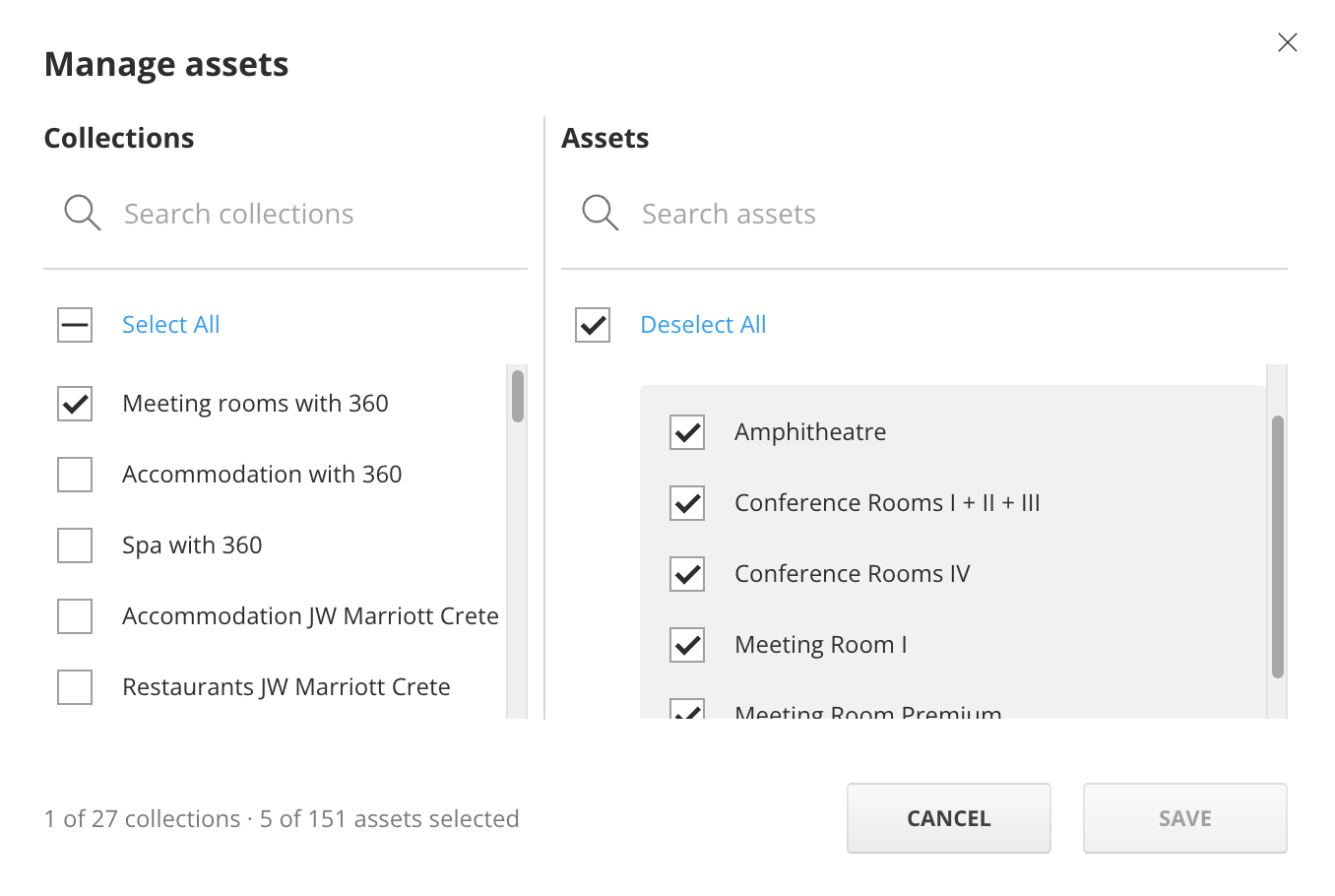
Two things turn attached rooms into a tour:
Room descriptions: bind a room’s formatted text to a rich-text field, so the copy sits on the slide and in the live drawer.
Hotspot to a room: add a hotspot, choose link to slide, and select the room it opens, so a click takes your audience straight to that room.
Important note: Removing a room from the slide only takes it off that slide — Seidat asks you to confirm first, and the room stays in the collection with all its details.
Using collection assets on a slide as smart elements is covered in full in Using assets in slides as smart elements.
Branding your tour (Seidat-Visit)
Brand settings let you style the live Seidat-Visit view so a tour looks like the venue, not a generic presentation. In the Seidat-Visit branding section you choose a hamburger menu or a flat menu for the live view, set the colours of the components your audience sees, such as the menu buttons, and create a separate brand set for each location or venue, so every tour carries its own colours. Editing Brand settings requires Brand Manager rights.
Colour palettes, swatches, HEX codes, and text styles are covered in full in Brand management, colours and text styles. Editing a palette or text style there updates every slide and tour that uses it straight away.
Presenting the tour live
In the live view your audience moves through the venue from the menu, and opens any room they want to see.
- The room menu lists the rooms that have a photo, in the order you set in the editor. Your audience selects a room to open it.
- Hotspots and links: a room also opens from a hotspot you placed on the slide, or from a link that points at a specific room.
- The drawer shows the open room’s description text, or embedded content from external sources if you are using URL fields.
- Charts and floorplans open from their icons, including any capacity chart you built. A tour can show more than one chart.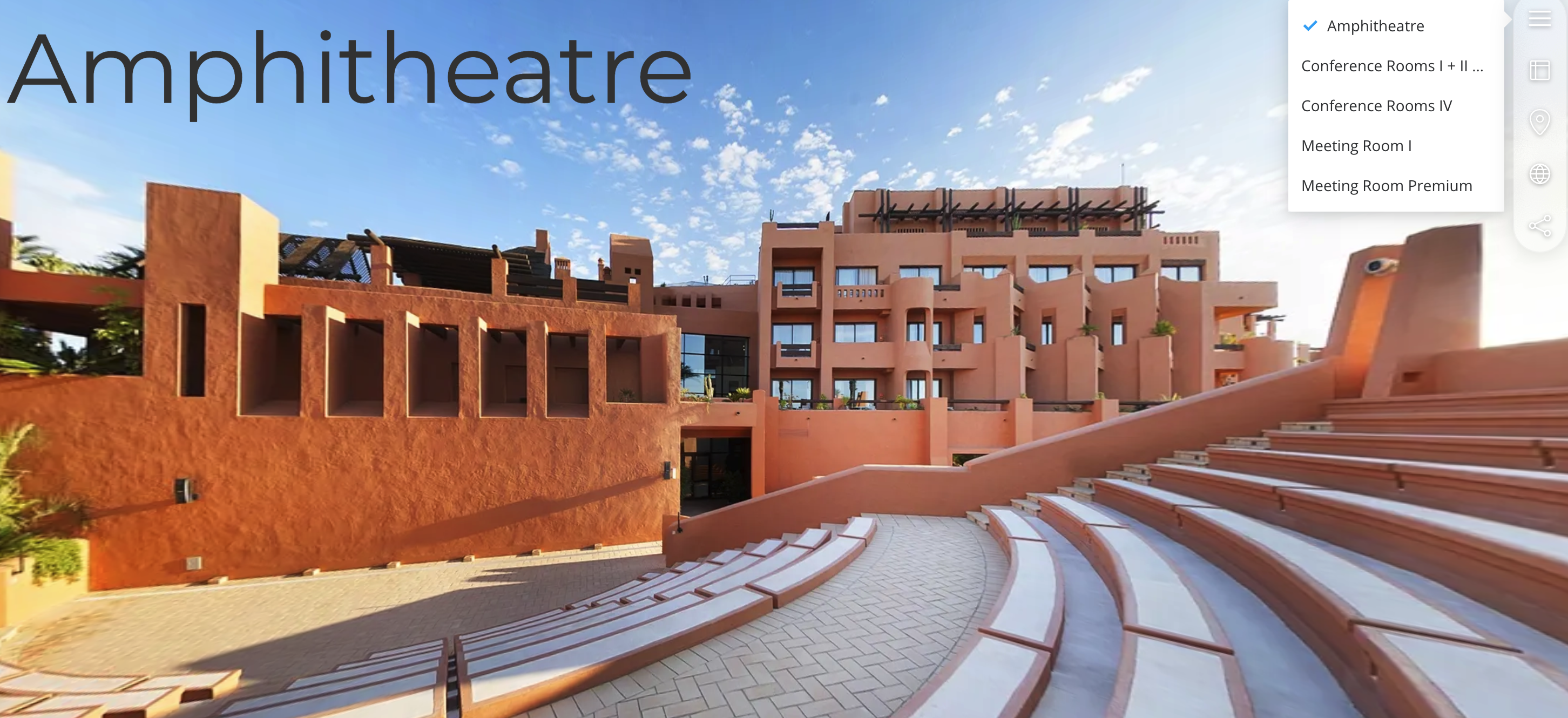
On a branded Seidat-Visit tour, the menu appears in your venue’s colours as a flat or hamburger menu, and a language selector lets your audience switch language — the slide, drawer, and chart text follow the language they choose.
Setting a tour up in several languages is covered in Multilingual collections and presentations.
Sharing the tour
You share a tour the same way you share any presentation: create a share link from the presentation’s share view, or send it to a named person with Direct Share.
Share a tour link in Browse mode, so anyone with the link moves through the venue themselves — opening each room from the menu at their own pace. This suits sending a tour for someone to explore, and presenting it yourself. On a branded Seidat-Visit tour, the share control can also capture the current 360 view, so the recipient opens the tour at the same angle you were looking at.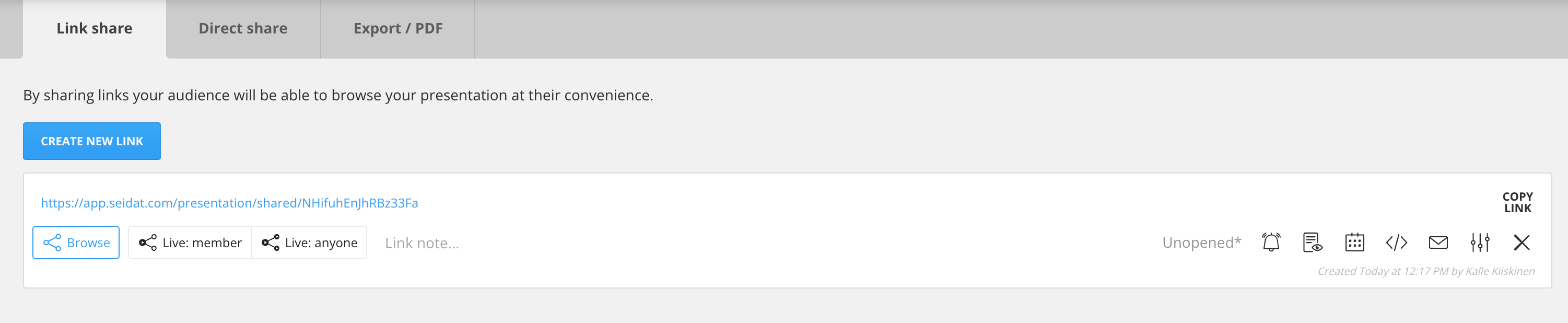
Creating and managing share links, link modes, and Direct Share are covered in full in Presentation sharing.