
Offline presenting with Seidat mobile app

Download your presentations to your phone or tablet and present them even without an internet connection on the go.
The Seidat mobile app is a companion app for existing Seidat users. You still create and edit your presentations in the browser — what the app adds is a copy of the presentations you need on your own device, so you can present them in a meeting room with bad wifi, on a plane, or at a customer's site.
The app is free and available for both iOS and Android:
iOS (iPhone and iPad): search for Seidat in the App Store. Requires iOS 14.0 or later.
Android: search for Seidat in Google Play.
Logging in
Logging in works the same way as in the browser version. When you tap to log in, the app opens your browser, and you sign in there with your usual Seidat credentials.
If you don't have an account yet, ask your workspace admin to invite you. See How to register with Seidat via invitation.
The two sides of the app: online and offline
The app is divided into two views:
Online — all your presentations. This is where you pick what to take with you. From the top right corner you can choose which workspace's presentations you want to see.
Offline storage — only the presentations you have downloaded to that device. This view is not divided by workspace: it shows everything downloaded to the device, from all of your workspaces at once.
Both views have a search in the top right corner, so you can find a presentation by name instead of scrolling.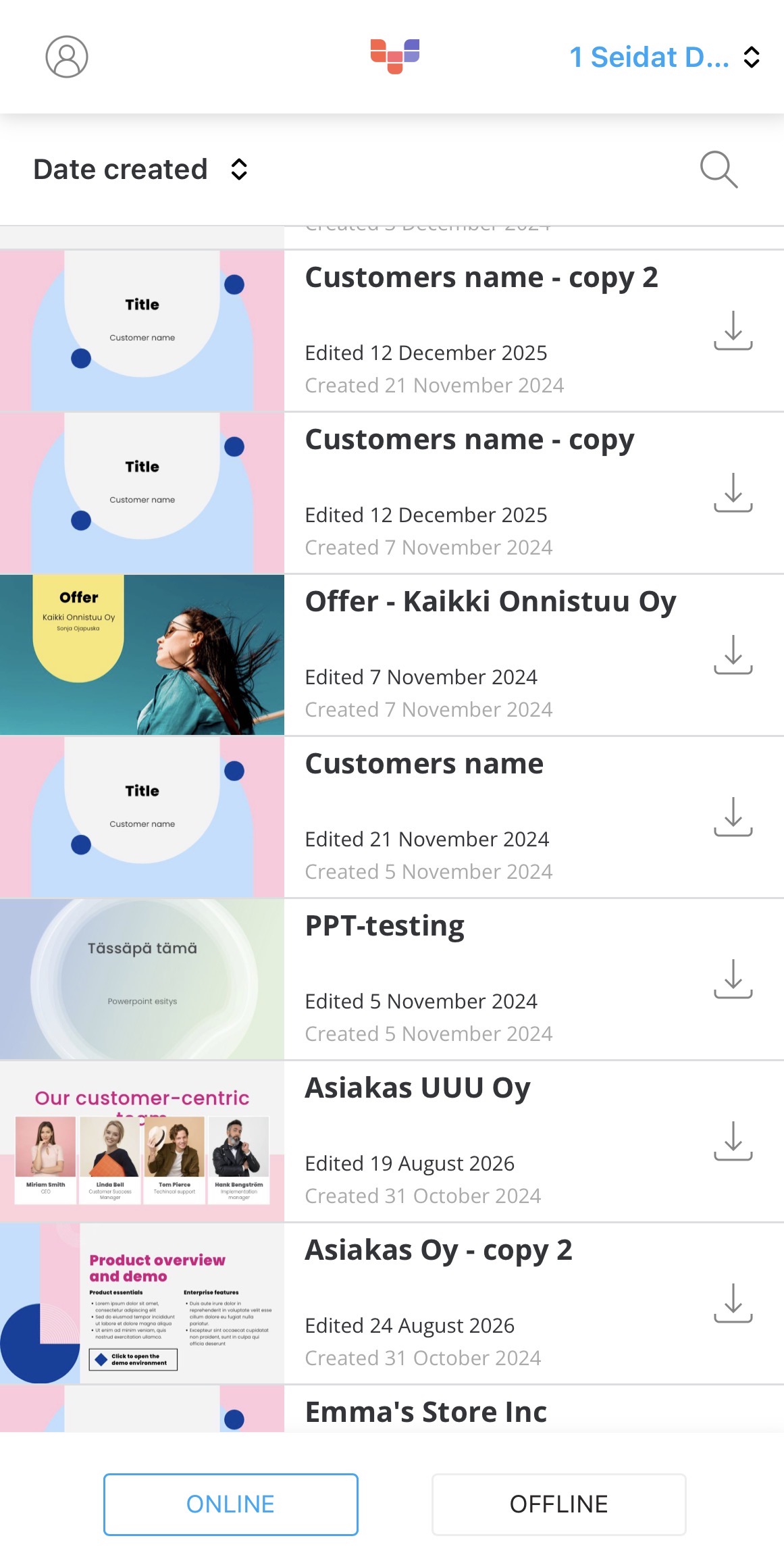
image 1. online view
Note that the offline storage is per device. A presentation you downloaded to your phone won't appear in offline storage on your tablet.
Downloading a presentation
On the online side, find the presentation you want and click the download icon. The app notifies you once the download is successful, and the presentation then appears in your offline storage.
If you open a presentation from the online side instead, it opens in your browser — so download the presentations you need while you still have a connection.
Presenting
Open the presentation from offline storage and present. It works exactly the same way as presenting in the browser, so your matrix structure, slide order and navigation are all unchanged.
Updating and deleting
A downloaded presentation is a copy taken at the moment you downloaded it, so it doesn't change if someone edits the presentation in Seidat afterwards.
To update it, click the refresh button.
To remove it from the device, click the delete icon.
Tip: if a presentation was edited shortly before your meeting, refresh it while you still have a connection.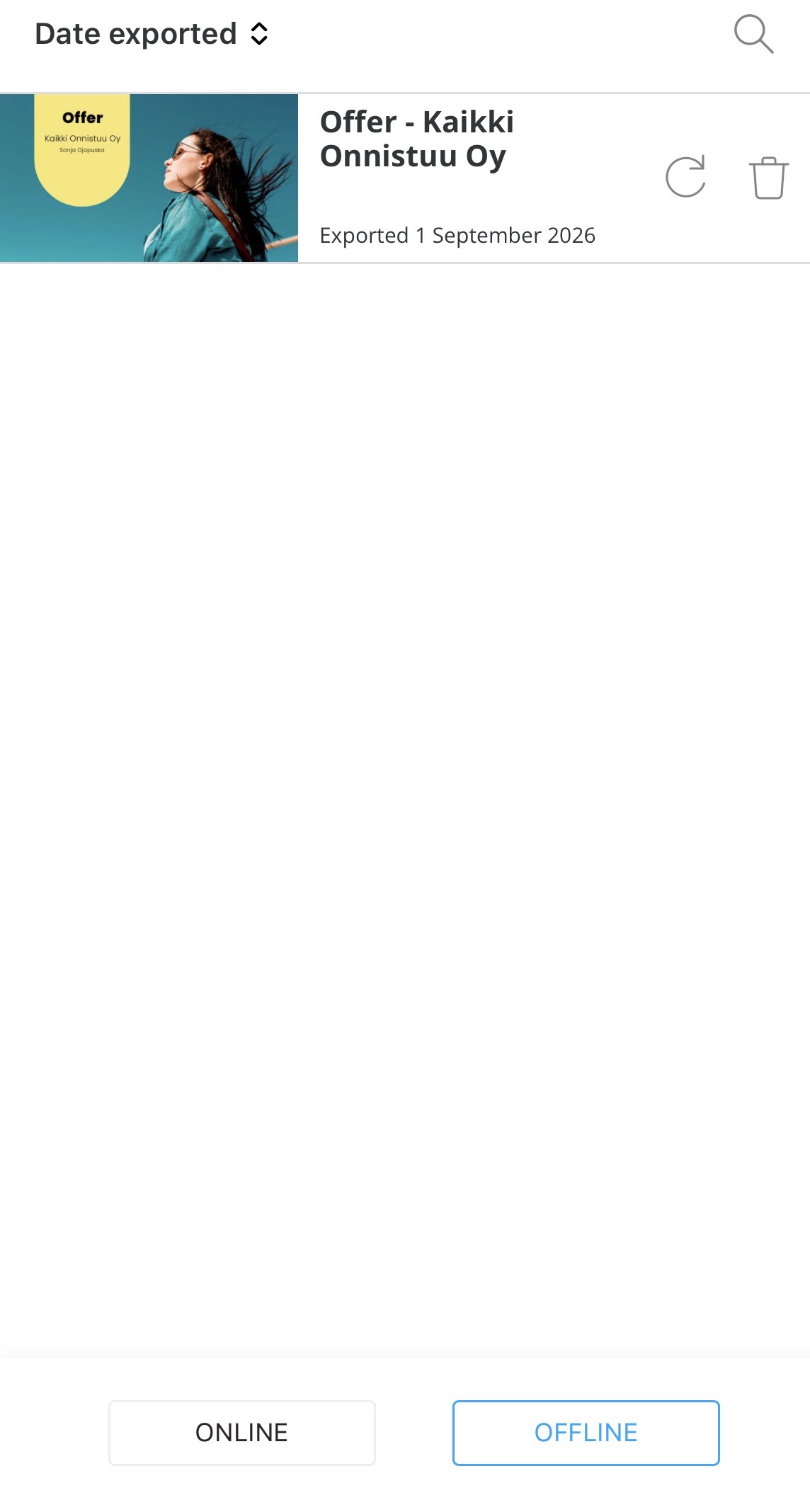
image 2. offline view