
How to register with Seidat via invitation

This article guides you through creating an account using SSO or a password
Once you've received an invitation to a Seidat workspace in your email, you can start registering by clicking the "Join Workspace" button in the body of the email. This opens the web page shown below in a new tab.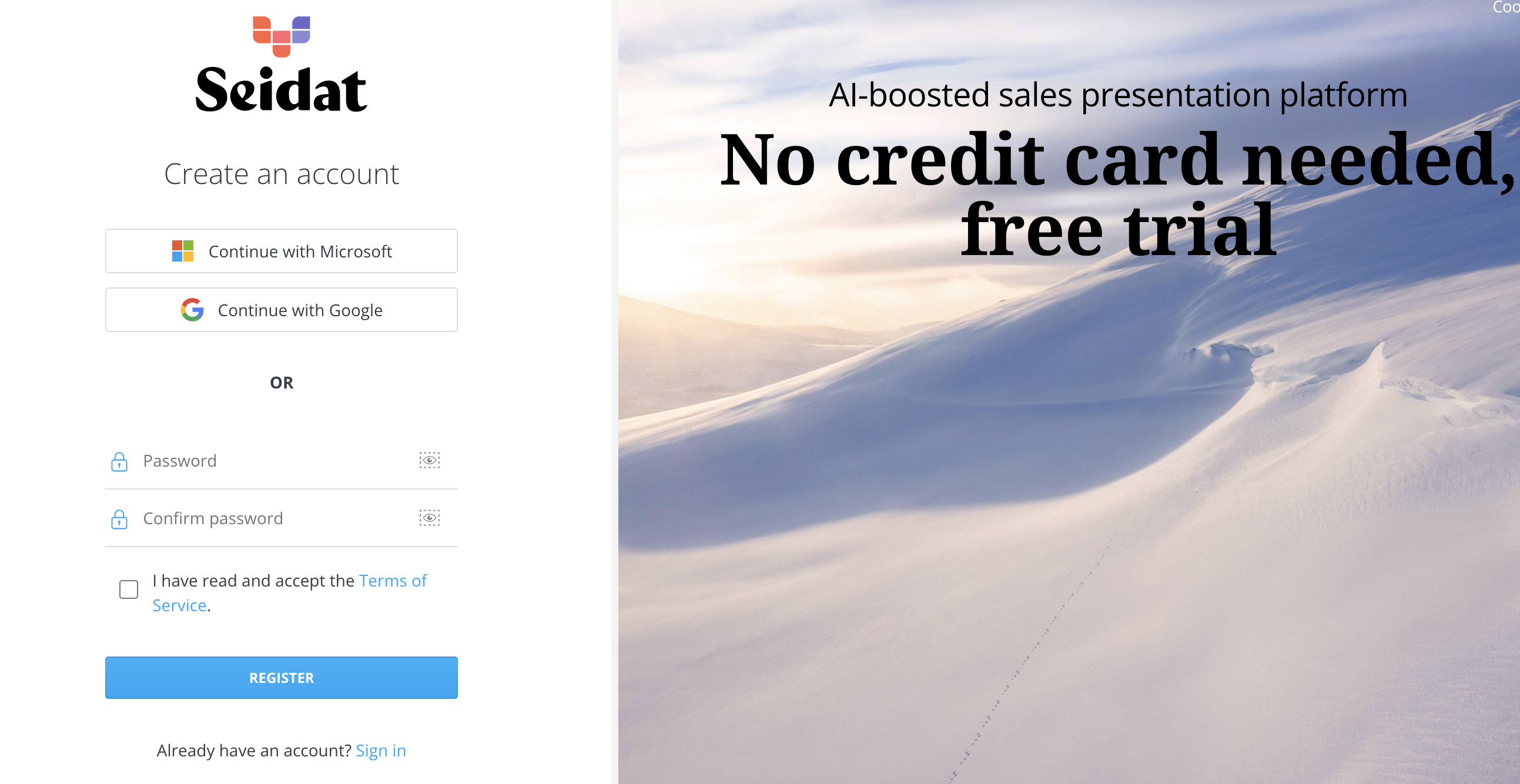
There are three different ways to create a Seidat account.
You can use your organization's SSO login by clicking either "Continue with Microsoft" or "Continue with Google", depending on which provider your email is with. These buttons open either the Microsoft or the Google sign-in page, through which you can link Seidat to your SSO credentials.
If you run into problems with SSO login, please check with your organization's IT administrator that Seidat is on the list of approved systems. Here is the link to the page, where administrators can approve access to Seidat: https://login.microsoftonline.com/common/adminconsent?client_id=846bb419-f70c-4ccf-aacf-d62722a593bf. You can share that link to your administrators in case of issues.
You can also create an account using password login. Enter the password you want in both fields, read and accept Seidat's terms of service, and click the "Register" button to continue.
Before you can start using Seidat, you'll need to provide a few additional details on the next page to improve your user experience. Once you've filled in the required fields, you'll be taken to your workspace's home page and can start using Seidat.
Welcome to Seidat!