
Slide and presentation recovery

If you delete a slide or a presentation by accident, there's usually a way to get it back.
Overview
Seidat keeps deleted slides and presentations recoverable, in different places depending on what was removed. A deleted slide stays available in the slide bank of the presentation it belonged to. A deleted presentation goes to the trash on your dashboard. A slide you have edited and saved is a different case, covered at the end.
Recovering a deleted slide
Deleted slides remain in the slide bank of the presentation they were part of.
1. Open the presentation in edit mode, so you see the matrix view.
2. Click an empty slide position.
3. The slide bank opens in the right-hand panel.
4. Open the Deleted slides -folder and choose the deleted slide to bring it back into the presentation.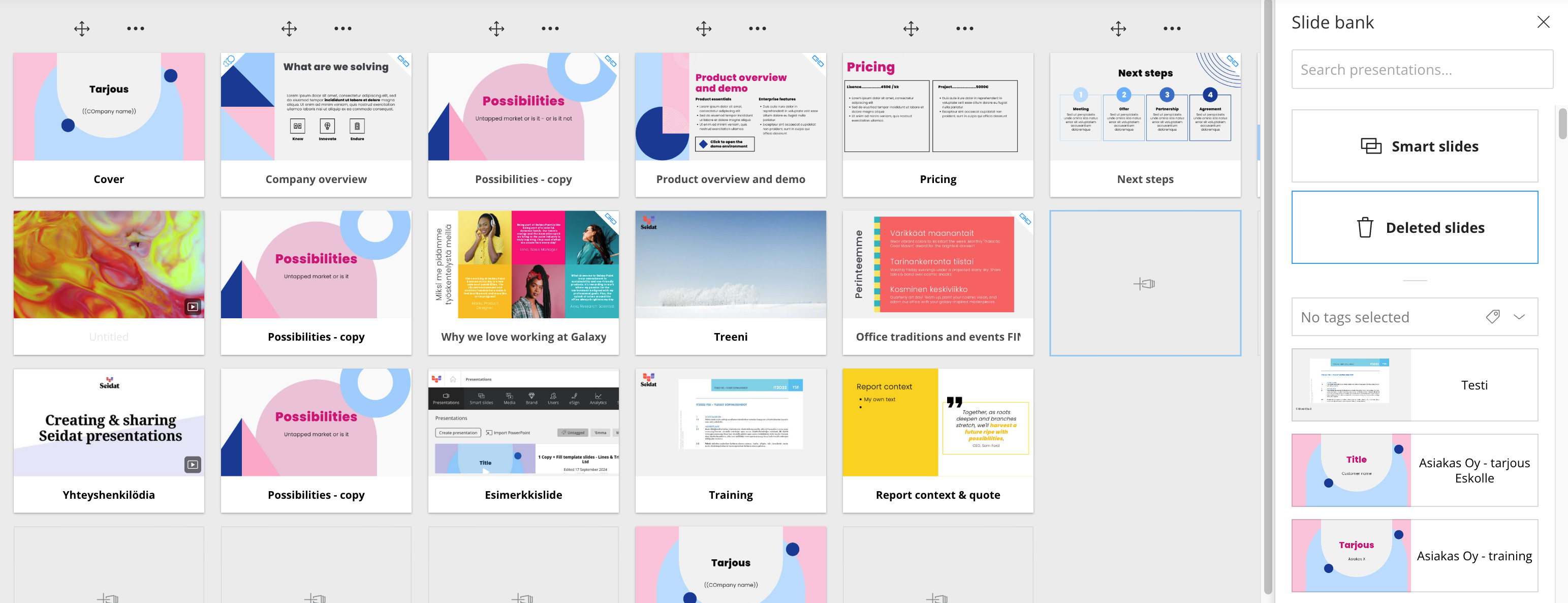
Important note: the slide bank belongs to one presentation. A slide deleted from one presentation does not appear in another presentation's slide bank.
Recovering a deleted presentation
Deleted presentations go to the Archive on your dashboard, along the top of the front page.
Go to your dashboard.
Open the ‘Archive’ in the top of the dashboard.
Select the presentation you want to restore.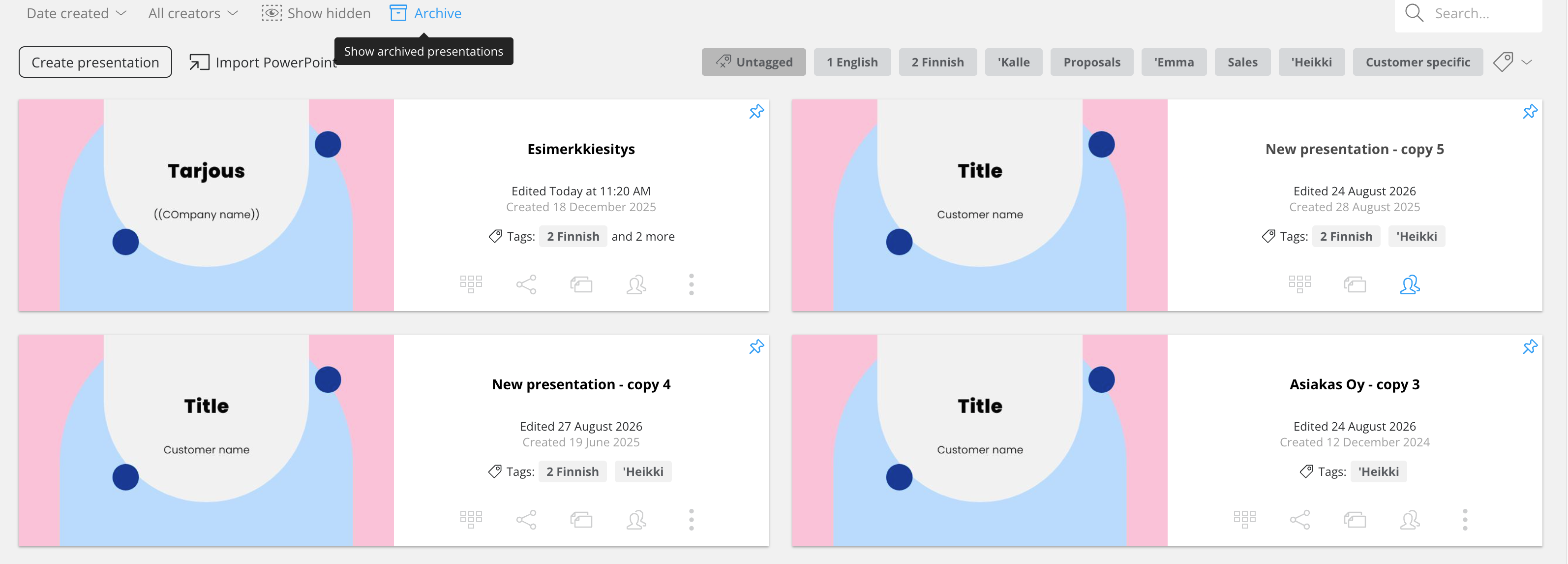
Restoring a slide you have edited or a deleted media
If you changed a slide and saved it, the earlier version is not in the slide bank — the slide still exists, it simply holds different content. Recovering the previous version means rolling your workspace back to the state it was in before the edit. This also applies to accidentally deleted media from the media bank.
Our development team can do this as a paid service. Contact support with the presentation, the slide, and roughly when the change was made, and we'll confirm what's possible and what it costs before any work starts.
Critical note: rolling a workspace back affects the whole workspace, not only the slide you want to recover. Anything else changed since that point is reverted too, so tell us if other people have been working in the workspace since.
Avoiding the problem
Keep a master presentation containing every slide, and build shared versions from it using the slide bank. Deleting a slide from a shared presentation then leaves the original untouched.
Give view-only rights to people who don't need to edit, so templates can't be overwritten by accident. Colleagues can still copy slides from a template presentation into their own through the slide bank.