Brand management, colors and text styles

Your brand management is super easy with Seidat's brand settings.
Workspace members holding "Brand Manager" user rights can modify the workspace's colour palettes and text styles. This functionality maintains brand consistency and control, so we recommend granting these permissions only to people who are familiar with your brand guidelines.
The Brand section adapts to whoever is viewing it. Brand Managers get the full editor with all the controls described below. Team members with view-only rights see a simpler, read-only version with a live preview instead of the edit controls, so they can still check how the brand looks without changing anything.
Colors
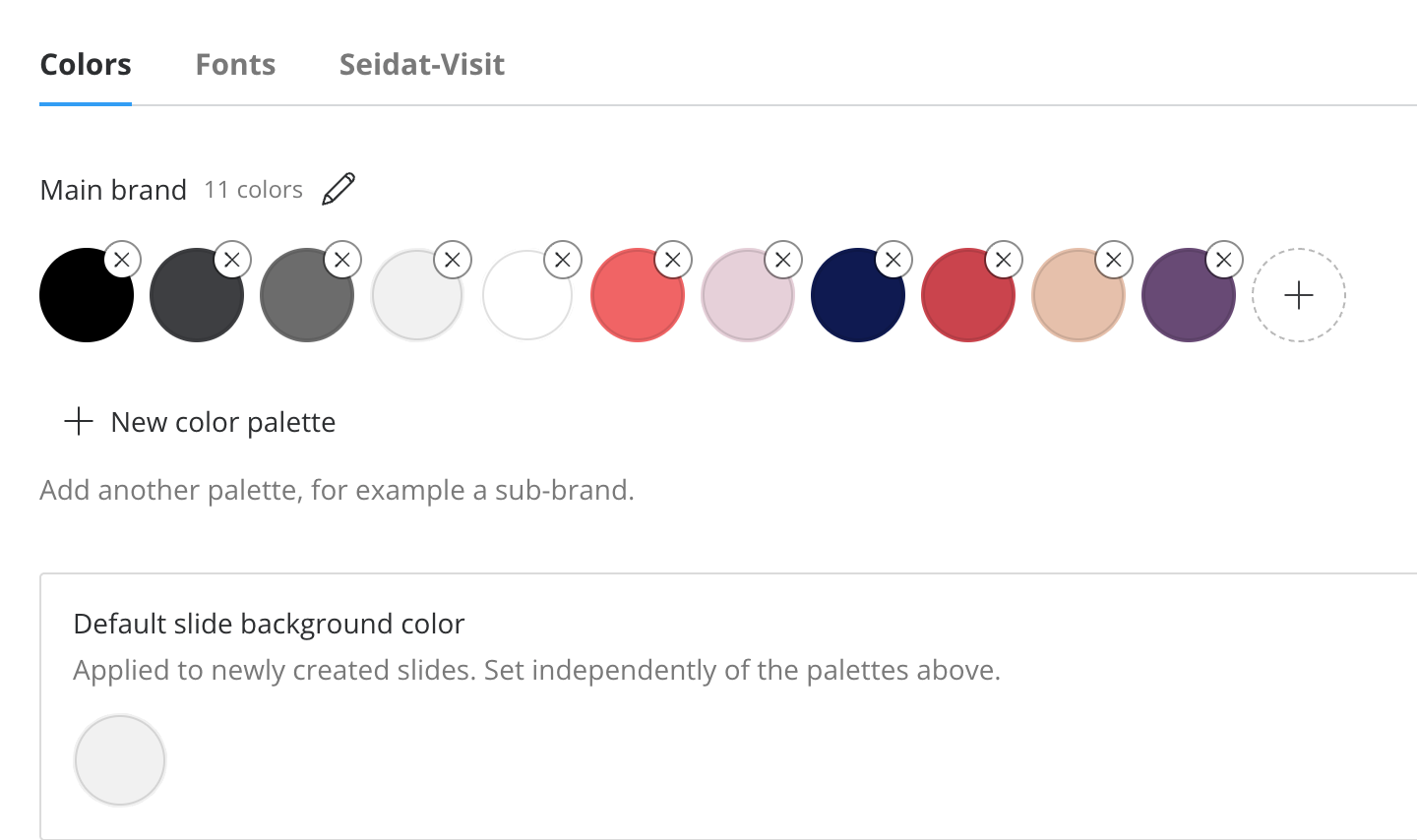
You can set up your company colors by entering HEX codes or using the color selector tool. These colors can then be used to create text styles in different colors. You can also create multiple different color palettes to make it easier for users to distinguish, which colors can be used together.
Import from PDF: You can also use a PDF or another file (image etc.) to import your brand colors and text styles. Simply click on the 'Import from PDF' text in the top right, and upload the file you want to use as the basis for the brand settings. Seidat will then identify the fonts and colors used in the document and recommend them to be uploaded in to the brand settings. You can make changes to the colors and text styles before confirming. Only Google Fonts can be automatically added to the workspace, if you have other custom fonts, contact our support via chat for help in adding the correct fonts to the workspace.
Text styles
Teams can create unlimited text styles for use across slides. Please note that editors cannot modify these styles while editing a slide — only Brand Manager-level users can do that.
Default text styles come pre-assigned to each workspace, and you can freely delete, deactivate, or modify them. We recommend descriptive naming conventions (e.g. "Header 50") so styles are easy to tell apart. If you rename a style so that it matches an existing one, Seidat asks you to confirm the merge first, so you don't combine two styles by mistake.
Editing text styles
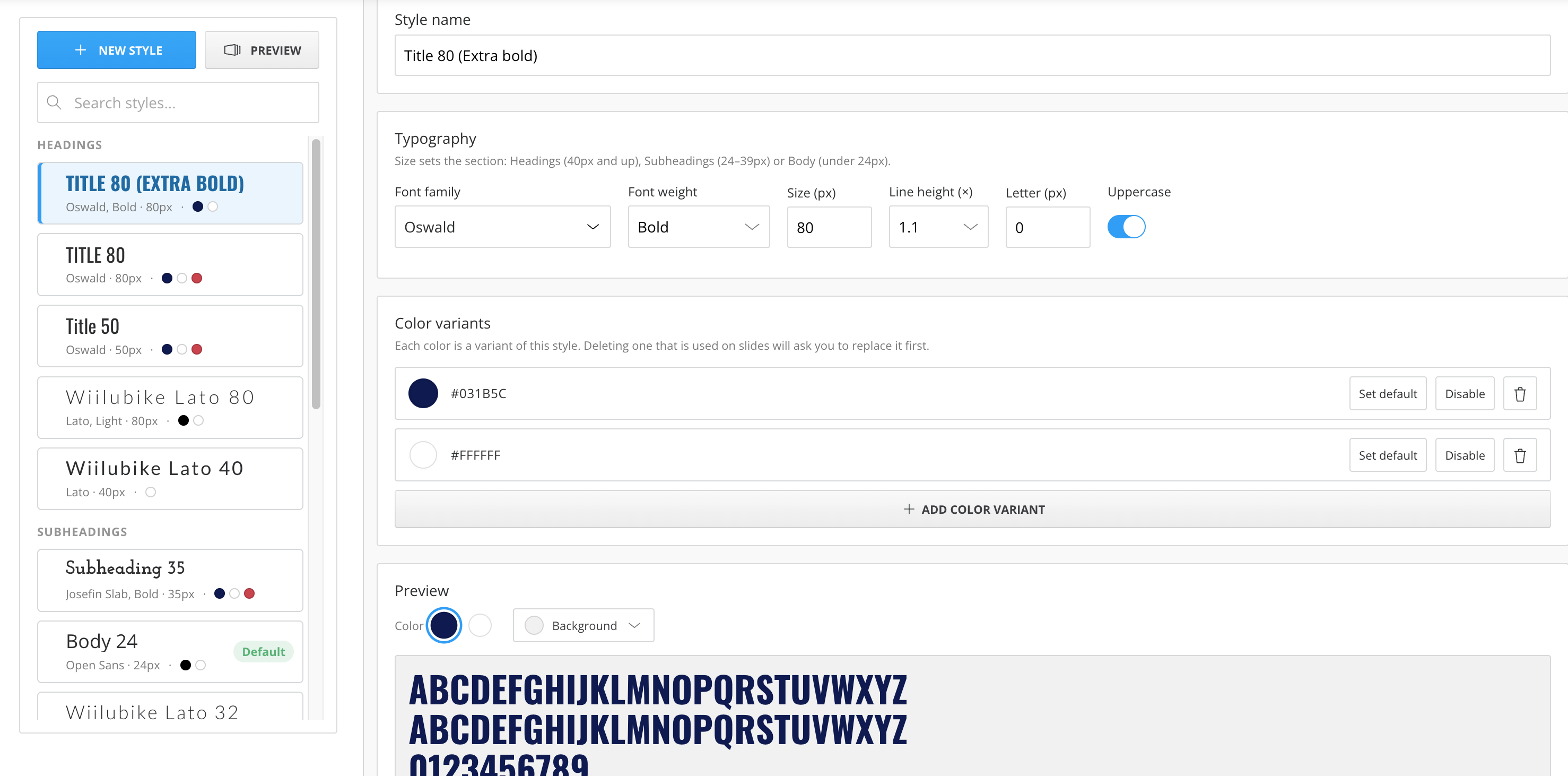
When previewing a text style, you can choose the background it's shown on — the slide color or any of your brand colors — so light text on a light background stays visible while you work. The currently selected color of a style stands out clearly, with a highlight and its color code shown, and the color picker closes automatically once you pick a color, with no extra click needed.
The available customisation options include:
Arrangement: reorder fonts in the list (typically largest to smallest).
Font-weight: anything from thin to heavy.
Font size: measured in pixels (this differs from PowerPoint's point system).
Line spacing: the vertical space between lines of text.
Letter spacing: the horizontal spacing, adjusted with percentage values.
Uppercase toggle: converts all letters to capitals.
Font color: aligned with your brand colour palettes.
Critical note: If you edit a text style in the Brand settings, all slides where that text style is used will be edited too, immediately.
Deactivating and removing text styles
When you remove an active text style, you can choose between replacing it with an existing style or deleting it. Replacing it via the same slot is the fastest method. The changed style will update on all slides immediately when the change is made.
Deactivating a style removes it from the editor's selection menu without deleting it from existing presentations — which is especially useful during a brand update.
Seidat-Visit Branding
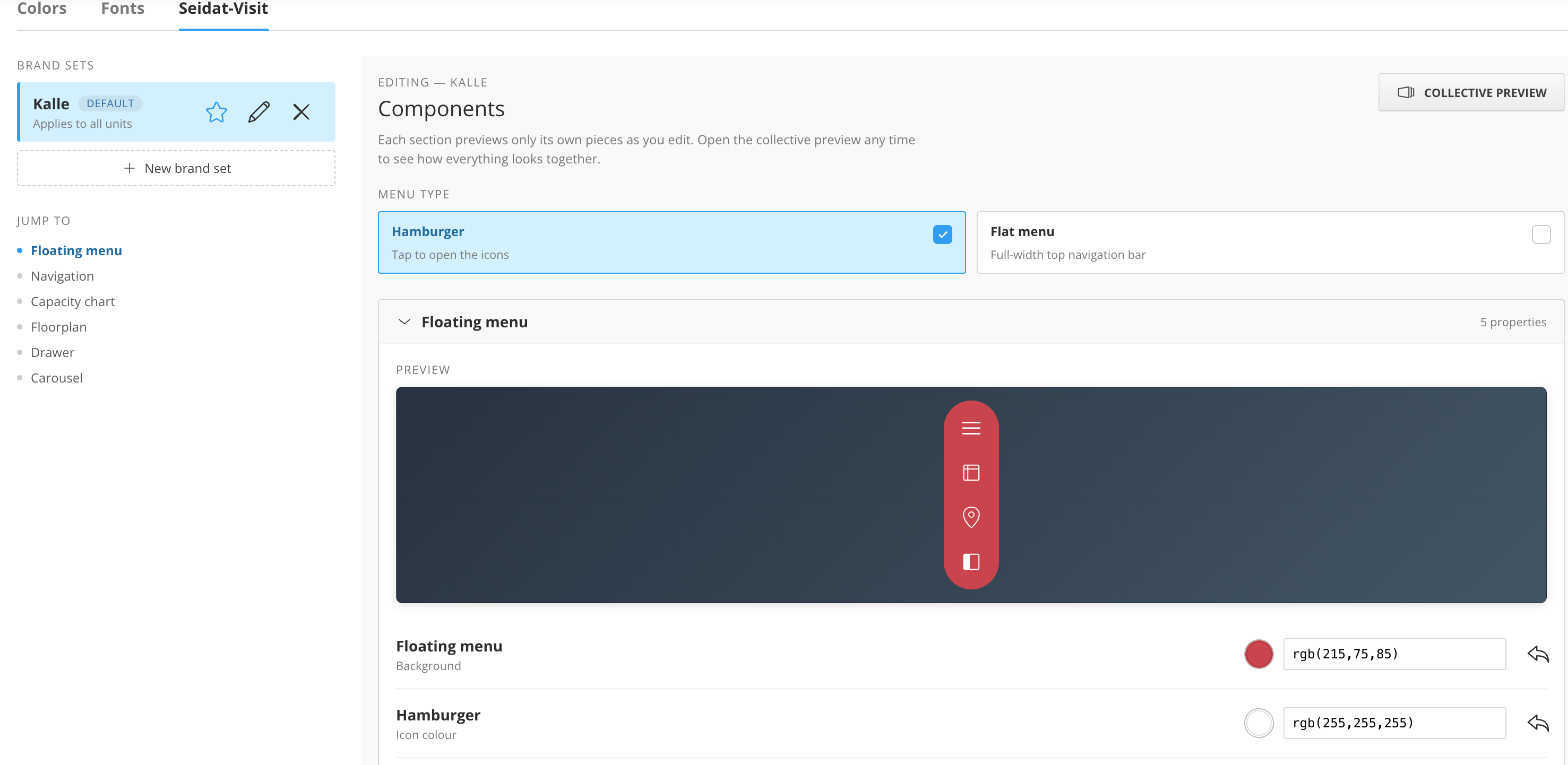
Seidat-Visit branding allows you to customize the different components visible on the slides (menu buttons etc.). You can easily choose between different styles and color options to make the components align with your brand identity. You can easily create different brand sets to be used for different locations or venues. You can also decide between a hamburger menu and a flat menu and edit the color palette in all of the specific components visible on slides. In the bottom of the page you can also enable link sharing to specific slide and image position. This allows you to create a link on a slide and share a specific slide and image position by tilting the image to your desired spot.